How to Annotate Screenshots in Chrome — Arrows, Text, Blur & More
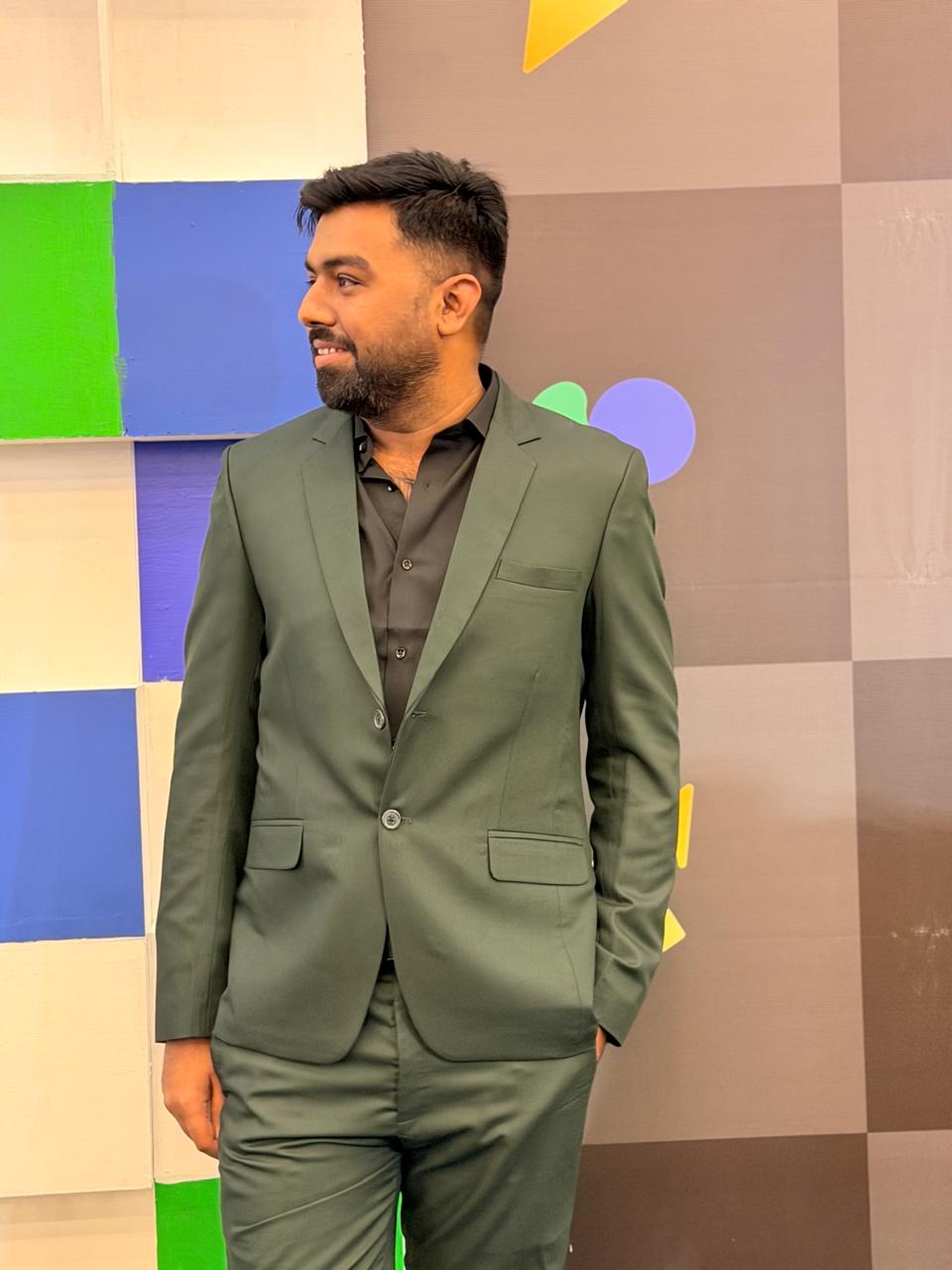 Ghulam Muhammad
Why Annotating Screenshots Saves Time
A plain screenshot forces the viewer to interpret the image themselves. They scan for what's important, guess at what you mean, and may miss the specific element you're referencing entirely. An annotated screenshot does the interpretation for them: an arrow points to the exact button, a text label says what's wrong, a highlight circle shows which element needs attention.
The result is fewer follow-up questions, fewer misunderstandings, and faster resolution. A bug report with an annotated screenshot gets reproduced faster. A design comment with an arrow and specific text gets implemented correctly on the first pass. A customer support screenshot with numbered steps gets followed without a follow-up call.
This guide covers every annotation tool in SnapRec's built-in editor, the correct order to apply them, and specific techniques for the most common use cases.
SnapRec's Annotation Tools: A Complete Guide
After capturing any screenshot with SnapRec (visible area, full page, or region), the image opens automatically in the built-in editor. The toolbar runs along the top of the editor window. Here's what each tool does and when to use it.
Crop
The crop tool removes areas outside a selection rectangle. Use it first, before any other annotation. Cropping reduces the image to only the relevant portion of the screen — removing browser chrome, unrelated application windows, or large empty areas that dilute attention. A tighter crop forces viewers to focus. In bug reports, crop to just the component with the issue. In design feedback, crop to the section you're commenting on.
Technique: Drag a crop rectangle around the area you want to keep, then confirm. If you're documenting a specific form field, include a few elements above and below it for context — pure isolation without surrounding UI can make it hard for developers to find the element in the codebase.
Blur
The blur tool applies a Gaussian blur to any rectangular region you drag over. Use it immediately after cropping to redact sensitive information — email addresses, names, API keys, financial data, or any personal information visible in the screenshot. The blur is destructive in the export — the original data cannot be recovered from the exported image.
Technique: Blur before annotating arrows and text. Blurring after you've added annotations is fine but occasionally causes visual overlap between blur regions and annotation elements. Apply blur first to keep the workflow clean.
Arrows
Arrows are the highest-signal annotation tool. A single well-placed arrow communicates "look here" instantly, across any language and technical level. Click the arrow tool, then click and drag from a starting point to the tip — the arrowhead appears at your drag endpoint.
Technique for bug reports: Point the arrow from empty space to the specific UI element with the bug. Avoid pointing to large areas — point to a specific button, input field, or text string. If you need to reference two separate areas, use two arrows and label each with a matching numbered text label (1, 2).
Technique for design feedback: Point the arrow from your text comment to the element you're commenting on, rather than floating the text comment near the element without a visual connection. This eliminates ambiguity when elements are close together.
Text Labels
Text labels let you add explanatory copy anywhere on the screenshot. Click the text tool, click anywhere on the image, and type. You can drag the text box to reposition it after typing.
For bug reports: Keep text labels short and specific. "Login button unresponsive on Safari 16.4" is better than "the button here doesn't work." The more specific the label, the less back-and-forth is needed to reproduce the issue.
For tutorials: Use numbered text labels (1, 2, 3) paired with arrows to create visual step sequences. Number each step and describe the action in the label: "1 — Click Settings", "2 — Select Account", "3 — Toggle Dark Mode." Viewers can follow numbered steps faster than reading a paragraph description.
For design reviews: Use text labels to state the specific change requested rather than a vague observation. "Increase line-height to 1.6" is actionable. "This text feels tight" requires interpretation and a follow-up question.
Shapes (Rectangles and Circles)
Shapes draw clean geometric outlines around areas without filling them. A rectangle around a UI section says "this entire area needs attention." A circle or ellipse highlights a single element more precisely than a rectangle when the element is round or irregularly shaped.
Best use case: When an arrow feels too specific (pointing to one pixel) and you want to indicate a region of the interface. Common in design feedback — "this entire navigation section needs to match the updated design system" — where you draw a rectangle around the whole nav, not a single item.
Brush / Freehand Drawing
The brush tool lets you draw freeform marks — underlines, circles, squiggles, and freehand arrows. It's the most expressive tool but also the hardest to use consistently. Freehand circles around UI elements are a common pattern, but they often look imprecise compared to the ellipse shape tool.
Best use case: Quick internal communications where appearance matters less than speed. For external-facing screenshots (customer-facing documentation, public issue trackers), prefer the cleaner shape tools over freehand.
The Correct Annotation Order
Following this order consistently produces cleaner, more professional annotations in less time:
- Crop first — remove everything irrelevant. Less context = faster reading.
- Blur second — redact sensitive data before it ends up in a shared link.
- Add shapes third — draw rectangles or circles around the relevant regions.
- Add arrows fourth — point from your comment to the specific element.
- Add text labels last — write the explanation once the visual hierarchy is established.
- Export or share — download as PNG or generate a shareable link.
Working in this order prevents common annotation mistakes like placing a text label in a location that then needs to be blurred, or adding an arrow before you've decided which region to focus on.
Annotation Techniques by Use Case
| Use Case | Tools to Use | Key Principle |
|---|---|---|
| Bug report | Crop + Arrow + Short text label | Point to the exact element; include the expected vs actual behavior in the text |
| Design feedback | Rectangle + Text with specific change request | State the requested change precisely, not the observation |
| Step-by-step tutorial | Arrow + Numbered text labels | Number every step; one arrow per step |
| Customer support | Numbered arrows + Blur for PII | Blur the customer's data; number the steps they should follow |
| Documentation | Shapes + Text labels | Label UI components by their functional name, not their appearance |
| Social sharing | Blur + Crop | Remove personal info; crop to the interesting content only |
Tailoring Annotations to Your Audience
For Developers
Developers need precision. Use arrows that point to the specific pixel-level element, not a general area. Include the component name or CSS class in your text label if you know it — "This .submit-btn doesn't respond to :hover on Safari" is immediately actionable. For layout bugs, annotate the computed dimensions you're observing vs. the intended dimensions.
For Designers
Design feedback annotations should include specific values whenever possible. "Increase spacing here by 8px" gives the designer an exact fix. "Reduce font size to 14px in this section" eliminates a decision. Use shape outlines to indicate the scope of a change ("this entire sidebar needs updating") and arrows + text for specific element changes.
For Non-Technical Stakeholders
Numbered step guides work best for non-technical audiences. Use simple language in text labels, avoid jargon, and crop tightly so they're looking at exactly what you want them to see. Add a single arrow per step — multiple arrows in one screenshot create confusion about where to look first.
For External Customers
Customer-facing annotated screenshots should be clean and professional. Use the shape tool rather than freehand. Keep text labels concise. Always blur internal UI elements, debug information, and other customers' data before sharing. A well-annotated customer support screenshot saves 10 minutes of back-and-forth on a support ticket.
FAQ
Can I annotate existing images, not just screenshots I just captured?
Yes. Open SnapRec's editor at snaprecorder.org/editor and paste an image directly (Ctrl+V / Cmd+V) or upload a PNG or JPG file. The full annotation toolkit is available for any image you open this way — you are not limited to screenshots captured in the same session.
Are annotations permanent in the exported image?
Yes, when you export or download the annotated screenshot, the annotations are baked into the pixel data as a flat PNG. They cannot be removed from the exported file. Inside the editor, you can undo any annotation with Ctrl+Z before exporting. Once you click Download or Share, the exported version is permanent.
What's the best annotation color to use?
Red is the most universally understood annotation color — it draws the eye and is conventionally associated with "pay attention here." Use red for bug reports and required changes. For tutorial step guides, a consistent single color (red or orange) throughout all steps looks more intentional than using multiple colors. Reserve blue or green for annotations that indicate positive elements or correct behavior, to distinguish them visually from "something is wrong" annotations.
How do I add annotations to a screenshot in Slack or email without downloading first?
The most efficient workflow: capture the screenshot with SnapRec, annotate in the editor, and click Share to generate a shareable link. Paste the link directly into Slack or email. Recipients see the annotated screenshot in their browser with no download required. This is faster than downloading and re-attaching a file, and the link is viewable on any device.
Written by
Ghulam Muhammad
Software Engineer & Founder, SnapRec
Ghulam built SnapRec after getting frustrated with watermarks on free screen recorders. He's been building Chrome extensions since 2024.
Start Recording for Free
Join thousands of creators, educators, and teams who use SnapRec to capture their screens effortlessly. No watermarks, no time limits.
